 Ringbook
💡 Tips & Tricks
A quick glimpse of small things that make Ringbook faster to use. Skim them in two minutes. ⚡
🖱️ Open a second screen
Want the feed on one side and a journal on the other? Right-click any link (or ⌘/Ctrl + click) and choose Open in new tab. Drag the tabs into two windows and you've got a side-by-side workspace. 🪟
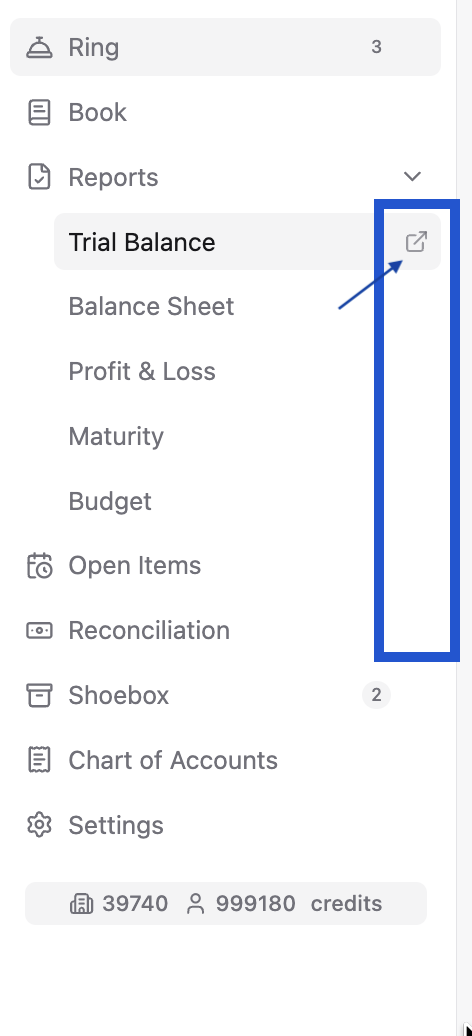
Even quicker: hover a sidebar item and click the open-in-new-tab icon that appears on its right — that page pops straight into a fresh tab. ↗️
🌐 Review documents in any language
Ringbook parses every supporting document you upload, so you're never stuck with a foreign-language receipt. Head to the Shoebox 👟 to read the extracted text, then switch your browser's language and let it translate the parsed content into your preferred language for review. 🗂️
🔎 Fit more on one screen
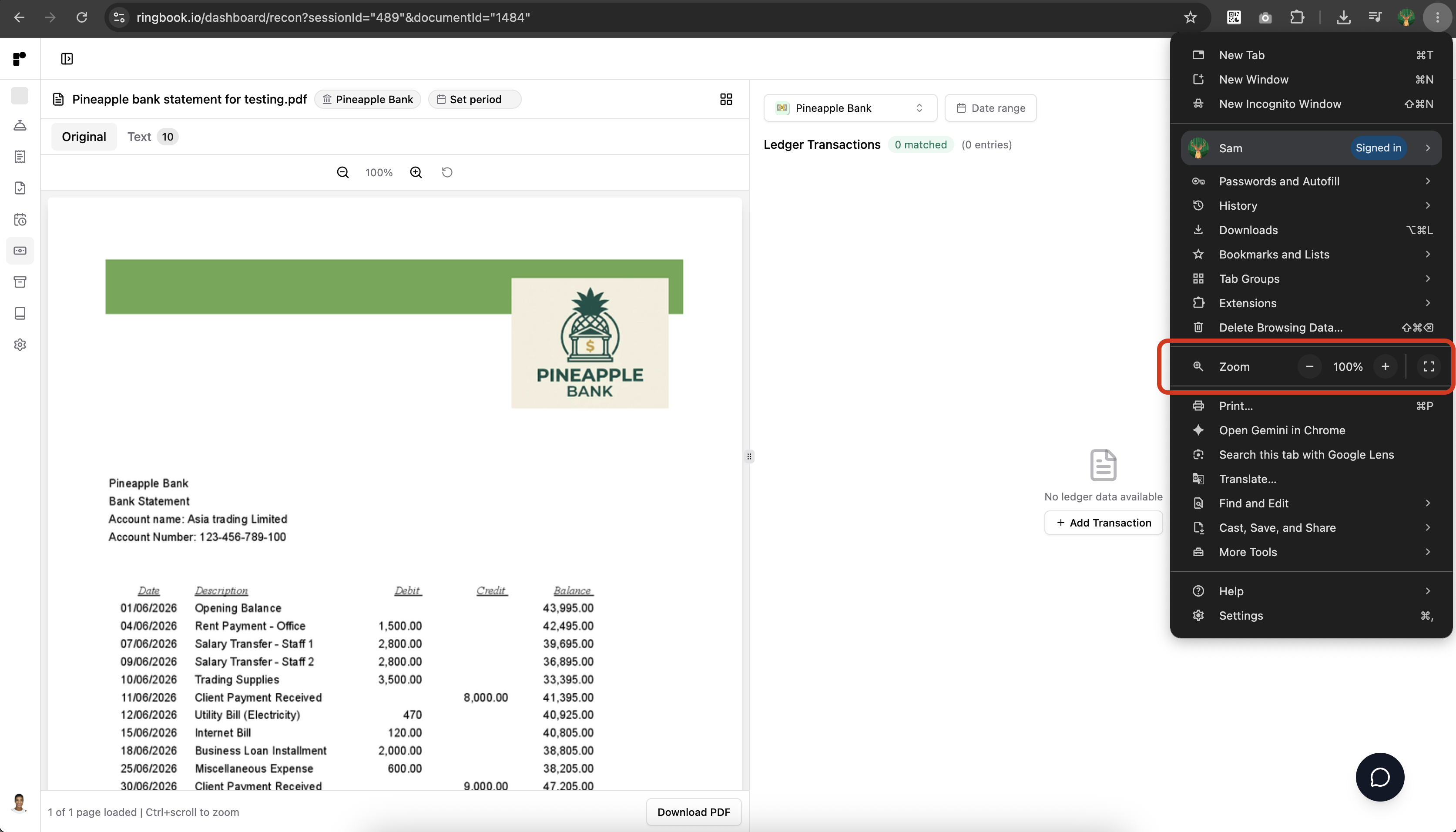
Want to see more detail at once? Use your browser's zoom to shrink everything down and fit more into a single view. In most browsers that's ⌘/Ctrl + - to zoom out (and ⌘/Ctrl + 0 to reset), or open the browser menu and adjust Zoom. 🖥️
💬 Tell clients to WhatsApp it now, not later
A receipt snapped at the till with a one-line note — "lunch with Mary, my card" — becomes a clean entry in seconds. A shoebox dumped at year-end is a guessing game. 📥 Ask your clients to WhatsApp documents the moment they happen, with a quick description. Capture early, breeze through month-end. 🎯
Quick rule: a document on its own lands in the Shoebox 👟. In chat, text posts a ring for review. Email is deliberately safer: every attachment goes to the Shoebox even when the forward has a subject; add a leading /ring only when you intentionally want a Ring.
This works for anyone who sends your company invoices often — say a contractor. 👷 Give them the Contractor role: they can only post rings with supporting documents, and can't see anything else in your books. 🔒
🔍 Drill down from any report to the story
Every report drills all the way down. Click a figure to open the journal behind it, then jump to the ring 🛎️ it came from — the description, the document, and the conversation. Trace any number on your P&L or Balance Sheet right back to what actually happened. 📖
🔗 Consolidate related rings
Got the same event scattered across a few rings? Open a ring's ⋯ menu (top-right) → Copy link, then paste that link into the ring you want to gather everything under. The rings link up into one thread. 🧵
🎟️ How credits are charged
Credits are spent from the organization's balance first, then fall back to the individual user's personal credits. Two ways to use that:
- 🏢 Company with a team — top up the organization so everyone draws from one shared pool.
- 🧮 Accountant in a firm — one accountant can serve 50 client companies, so they just buy credits on their personal account and carry them across every set of books. 🚀
💌 Always let us know your thoughts
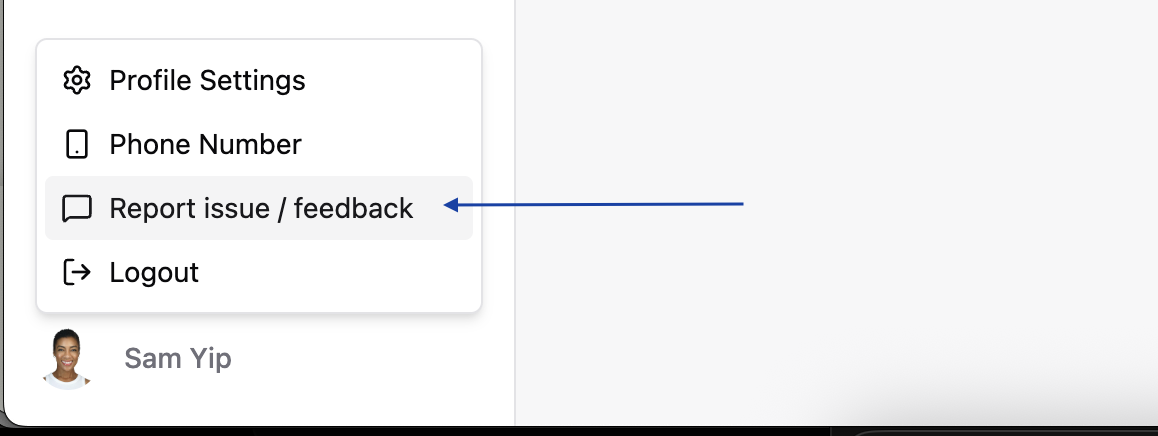
Stuck on a step, hit something confusing, or have an idea to make Ringbook better? We want to hear it. Open your profile menu (bottom-left) and pick Report issue / feedback — send us a message and we'll take it from there. 🙌
⚖️ Auto-balance a journal in one tap
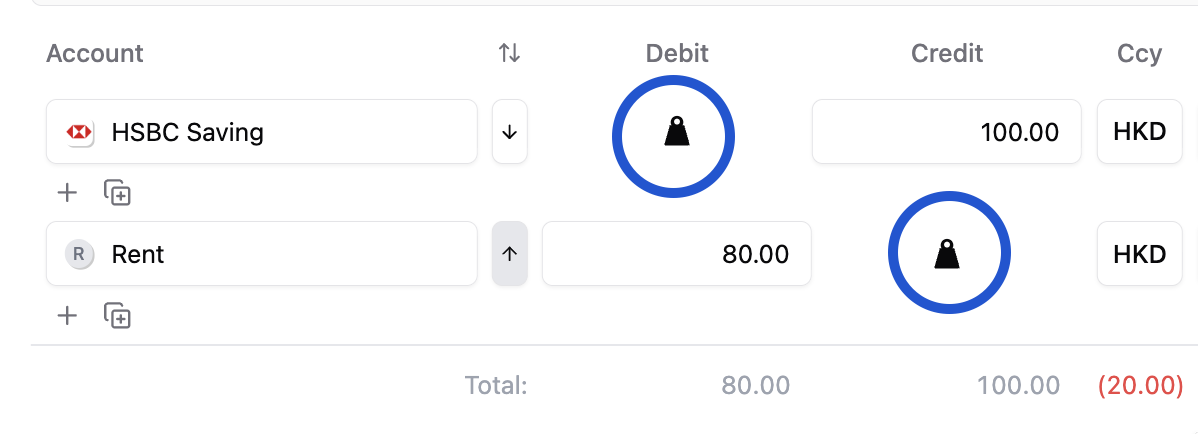
Editing a journal entry? Every line has an auto-balance button that will make that line as balancing line for the whole journal. No mental math on the last leg. 🧮
📸 HEIC photos aren't supported
Like Instagram and LinkedIn, Ringbook doesn't accept Apple's .heic photos on direct upload. Fix it once on your iPhone and forget about it: Settings → Camera → Formats → Most Compatible — every photo now saves as .jpg. ✅
(Sending the photo through WhatsApp also converts it automatically. 💬)
Review faster with Book and reports
- Cycle Compact → Grouped → Detailed to choose how much journal detail to see. Compact’s displayed amount is the largest posting, not a summed journal total.
- Expand one journal to inspect it, or save a useful column/filter setup as a named view. Default restores the system layout.
- Select journal lines to inspect their net total. Review before combining lines, swapping debit/credit sides or adding a balancing line from Difference.
- Use editor Undo/Redo for unsaved editing steps; use the separate import-history or clearing controls for those workflows.
- Split a line across segments to allocate a shared expense, then review P&L by segment.
- Click a report figure to trace it to Book, a Ring and supporting documents. Mark reviewed figures and clear marks for your next review.
- Try these with the private sample company before using your own books. The Book walkthrough and report exercise use sample data.