
AI in Ringbook
Ringbook uses AI to do the tedious part of bookkeeping for you: reading a receipt, drafting a balanced journal entry, matching a document to the right transaction, and answering questions about your books in plain language. You stay in control — the AI proposes, you review and post.
This page explains where AI shows up, how to get the best results from it, how to teach it your own booking conventions so it gets better over time, and how to tell us when something's off.
This page is English-only for now. The Ringbook app itself is available in English, Japanese, Russian, Thai, Simplified Chinese, and Traditional Chinese.
Contents
- 1. Where AI Shows Up
- 2. Getting the Best Results
- 3. Make Rule — Teach Ringbook a Booking Once
- 4. Ring → Journal Rules (Settings)
- 5. The AI Companion Chat
- 6. Document Matching
- 7. Bank Reconciliation
- 8. Tell Us What You Think
A note on expectations. Think of the AI as a fast, capable first draft — roughly 90% correct, 90% of the time — not a replacement for professional judgment. A human in the loop is still essential, which is why we've built the interface so you can review and adjust results in just a few clicks. An accountant should still review at the end. Ringbook is not yet 'driverless' accounting; we simply aim to significantly save user's time.
1. Where AI Shows Up
AI is woven through the everyday flow rather than bolted on as a separate mode:
- Generating journal entries — describe an event or attach a receipt on the Ring page (or in the Ledger's Add Journal Entry dialog) and Ringbook drafts a balanced entry. This is the most common use.
- Bank reconciliation — Ringbook reads any bank statement, matches lines to existing entries, and proposes accounts for the unmatched ones.
- Document matching — uploaded receipts and invoices are scored against your transactions so the right document attaches to the right entry.
- The Companion chat — a floating assistant that can search your documents and transactions, draft reports, and even create rings and entries on request.
- Rules — Make rule and the Ring → journal rules settings let you teach the AI how you book a recurring transaction, so it stops guessing.
AI-powered actions consume AI credits. Manual data entry is always free; you only spend credits when you ask the AI to read, draft, or match something. See Pricing for how credits work.
For the bookkeeping fundamentals these features sit on top of — rings, journals, the Shoebox, reconciliation — see the main Documentation.
2. Getting the Best Results
The AI is good, but a few habits make it noticeably better and save you credits by getting a clean draft on the first try.
2.1 Photograph on a plain, light background
The single biggest factor in extraction quality is the background behind the receipt. A receipt shot flat on a plain white (or other light, solid) surface, in even light, gives the AI crisp edges and clean text. The same receipt on a cluttered desk — wood grain, other papers, coffee rings, hard shadows — forces the AI to guess where the receipt ends and the desk begins, and it reads less reliably.
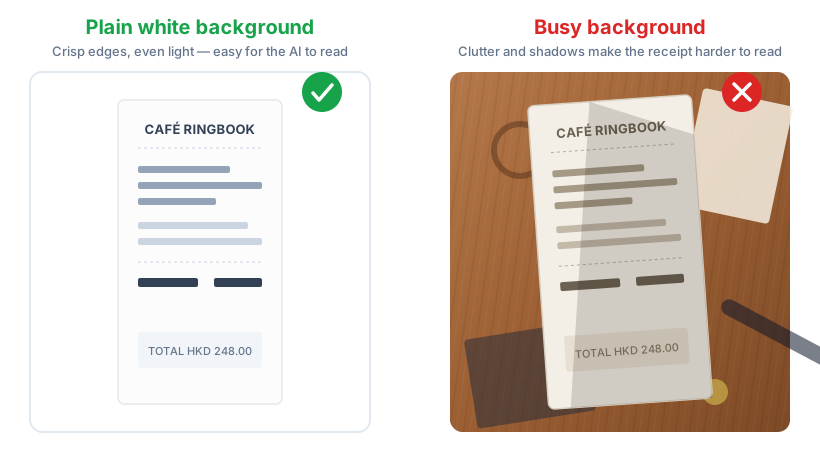
A few seconds of setup pays off:
- Use a plain, light surface — a sheet of paper or a clear tabletop beats a textured or dark one.
- Fill the frame with the receipt and keep it roughly flat, not curled.
- Avoid harsh shadows — don't let your hand or phone cast a line across the text.
- Keep it in focus — a sharp photo of a faded receipt beats a blurry photo of a clear one.
This applies to receipts sent via WhatsApp and to drag-and-drop uploads alike.
iPhone photos often save as
.heic, which isn't supported on direct upload. Sending the photo via WhatsApp converts it automatically; for drag-and-drop, convert to.jpgfirst. See the docs for how.
2.2 If a generation gets stuck, just try again
AI generation is probabilistic. Occasionally a draft will stall, time out, or come back looking off. It's completely fine to generate again — just trigger the generation a second time. A retry usually succeeds, and because each run is independent, the second attempt often produces a cleaner entry than the first.
This is true everywhere AI generates: the Ring composer's Generate with AI, the inline Generate Journal action on an existing ring, the Ledger's AI entry, and reconciliation suggestions. If something looks wrong, regenerate before fixing it by hand — it's faster.
2.3 Match the receipt's currency to the account
A common source of errors: the currency on your document doesn't match the currency the chosen account allows. For example, if you attach a receipt in HKD but the account the AI picks (or that you select) is restricted to a different currency, posting can fail with an error.
When that happens, you have two clean fixes:
- Point the line at an account that accepts the document's currency — e.g. book the HKD receipt to an HKD-capable account (or a cash/expense account that isn't locked to one currency).
- Check the account's currency setting — if an account is meant to hold more than one currency, make sure it isn't restricted to a single one in the chart of accounts.
If you genuinely need to book a foreign-currency receipt against a base-currency account, that's a multi-currency entry — Ringbook stores both the original and base amounts and can add the FX gain/loss leg for you. See Multi-Currency and FX in the docs.
2.4 A short description helps
The AI reads both your text and the attached document. A photo on its own usually produces a workable draft; a photo plus a handful of words — "Lunch with David, paid on the Amex" — produces a noticeably cleaner one, because the AI knows the context (which card, what it was for). You don't need a sentence; a few words is plenty.
3. Make Rule — Teach Ringbook a Booking Once
Some transactions recur in exactly the same shape every month: the same rent, the same software subscription, the same payout from a marketplace split across fee and net. Rather than re-checking the AI's guess each time, you can capture how you book it once and have Ringbook follow that recipe on every similar ring afterwards.
3.1 When to make a rule
Make a rule when you find yourself correcting the AI the same way repeatedly, or when a transaction has a non-obvious split the AI can't infer (for example, a gross payout that needs to be broken into platform fees and net cash). The more idiosyncratic your booking, the more a rule helps.
3.2 How to create one
- Book one example properly. On a ring, generate or create the journal entry and get the accounts, amounts, memos, and any segments or sub-ledgers exactly the way you want them.
- Open the ring's 3-dot menu and choose Make rule (✨).
- The dialog shows the captured example — the ring text, attached files, and the journal entries you booked.
- Optionally add context:
- "When does this apply?" — a short hint describing the kind of ring this rule should match (e.g. "Stripe payout emails").
- Output language — Auto, English, Traditional Chinese, or Simplified Chinese.
- Click Synthesize rule. The AI drafts a rule with a name, a match hint, and free-text instructions describing how to extract the fields and book the amounts. It may also ask a few clarifying questions.
- Review, then Save rule.
You refer to accounts by name in the instructions — the rule is a plain-language recipe, not code.
3.3 Refining and previewing
Before saving, you can tighten the rule:
- Rule preview re-runs the draft rule against your captured example and shows exactly what it would book, so you can confirm it reproduces what you intended.
- Answer the clarifying questions and click Refine rule to let the AI tighten the instructions.
- Or just edit the instructions directly.
Saved rules can be edited, toggled on or off, or deleted later from Settings (next section).
4. Ring → Journal Rules (Settings)
Every rule you create with Make rule is managed in one place: Settings → Company Policies → Ring to Journal (the Ring → journal rules card).
Rules saved from a ring's 3-dot menu ("Make rule"). When the AI generates a journal on a similar future ring, it follows the matching rule's accounts and structure instead of guessing.
The page lists each rule with:
- Its name.
- The match hint (when it applies).
- Any keywords extracted from the rule.
- An enabled / disabled badge.
For each rule you can edit it (name, match hint, instructions), toggle it on or off without deleting it, or delete it outright. Disable a rule when a vendor changes their invoice format and the rule starts misfiring — you can re-enable it after fixing the instructions.
When you next generate a journal on a ring that matches an enabled rule, Ringbook follows that rule's accounts and structure instead of drafting from scratch. This is how the system gets more accurate the more you use it: every correction you turn into a rule is one the AI won't get wrong again.
5. The AI Companion Chat
The Companion is a floating chat assistant — tap the message-circle button in the bottom-right corner of the dashboard. It can run as a compact bubble or dock as a resizable sidebar, and it keeps a history of your past conversations (which you can rename, delete, or start fresh). On desktop, the expanded sidebar becomes part of the workspace instead of covering it; wide pages remain horizontally scrollable. You can attach files (images, PDFs, and spreadsheets) to a message.
Using the Companion spends AI credits; you'll be prompted to top up if your balance is too low.
5.1 What you can ask it
The Companion has read access to your organization's books, so you can ask things like:
- Find a document — "Find the AWS invoice from March" or "Show me receipts over 2,500 EUR". It searches by vendor, date, amount, and meaning (not just exact keywords) and returns the document with its extracted details and any linked transaction.
- Look up transactions — "Show recent transactions" or "What did we book for rent last quarter?" It searches by date range, keyword, or account and shows the entries with accounts and amounts.
- Pull a report — "Give me the profit & loss for Q1" or "Bring me to the balance sheet as of end of last month." It immediately opens the exact dated Trial Balance, Balance Sheet, or P&L page while it finishes the figures and written summary. It then offers No download, PDF, Excel, CSV, and All formats as buttons unless you already named a format.
When you open a fresh chat it suggests starting points: Create a ring about…, Record a transaction for…, Find documents for…, and Show recent transactions.
5.2 What it can do for you
Beyond answering, the Companion can take a couple of actions on request:
- Post a ring — "Post a ring noting we paid the office deposit today."
- Record a transaction — describe an entry and it will create a balanced journal (it enforces double-entry, so debits must equal credits), including per-line memos and due dates where they apply.
When an action has a clear review page, Companion opens that page underneath the expanded sidebar. For example, a budget update opens the exact Budget and a journal approval opens Book. It does not ask a second question just to navigate: navigation is reversible, while the write is still protected by the approval step.
The same applies to page workflows: Book filters open the filtered Book table; report requests open the dated report; Open Items requests open the requested receivables/payables view; and an attached accounting workbook opens Settings → Import with that file loaded into the guided import wizard. When Ringbook genuinely needs a choice, it uses buttons instead of asking you to retype an option.
In Ask first mode, a write pauses on an approval card. Nothing changes until you click Approve; Cancel leaves the data unchanged. In Auto mode, most writes run without that card, so use it only when you want that behavior. Creating an account still asks because a duplicate account can permanently split reporting.
5.3 Tips for asking
- Be specific about dates — "last month", "Q1 2026", or an explicit range gets a sharper report than "recently".
- Name the vendor or amount when searching — it narrows results fast.
- One thing at a time — a focused question gets a focused answer; bundle follow-ups into separate messages.
Querying your books from WhatsApp isn't supported — that lives in the Companion in the web app. WhatsApp is for capturing rings and dropping documents into the Shoebox.
6. Document Matching
When a receipt or invoice lands in your Shoebox, Ringbook tries to figure out which transaction it belongs to — so the paperwork ends up attached to the right journal entry without you hunting for it.
Open a document's preview and you'll see a Match Suggestions panel (✨). If the document is already linked, it shows the Linked Transaction with a green badge. Otherwise it lists the potential matches the AI found.
6.1 How matches are scored
Each suggestion comes with a confidence level — High, Medium, or Low — backed by a breakdown of how it scored:
- Date — how close the document's date is to the transaction's date.
- Amount — how close the document total is to the transaction total.
- Text — how well the document's content matches the transaction description (by meaning, not just exact words).
- Combined — the overall weighted score.
Each candidate card shows the transaction's description, date, total, and the first couple of accounts involved, so you can judge it at a glance.
6.2 Accepting and rejecting
- Accept (✓) links the document to that transaction. High-confidence matches may be linked automatically.
- Reject (✕) dismisses a suggestion that's wrong.
- Find Matches runs the matching engine if there are no suggestions yet; Refresh re-runs it (useful after you've booked the matching entry). Each run is a fresh AI attempt and costs credits — the button shows the price and asks you to confirm first.
Matching runs automatically when documents arrive, and the defaults need no configuration. The one control worth knowing: when a search finds nothing, the panel says what was searched and offers Search wider (±30 days) — a re-run with the date window opened up, which only suggests and never links automatically. Beyond that you're only ever confirming or dismissing what the AI proposes, which keeps a clean trail of which document supports which entry. For more on documents and the Shoebox, see the docs.
7. Bank Reconciliation
Reconciliation is where Ringbook's AI does its heaviest lifting. You give it a bank statement; it reads every line, matches what it can against your ledger, and shows you exactly what's missing — so closing the month is a quick review instead of a manual tick-and-tie. It works on real-world statements from any bank, in any format (PDF, CSV, or OFX/QIF) and any language.
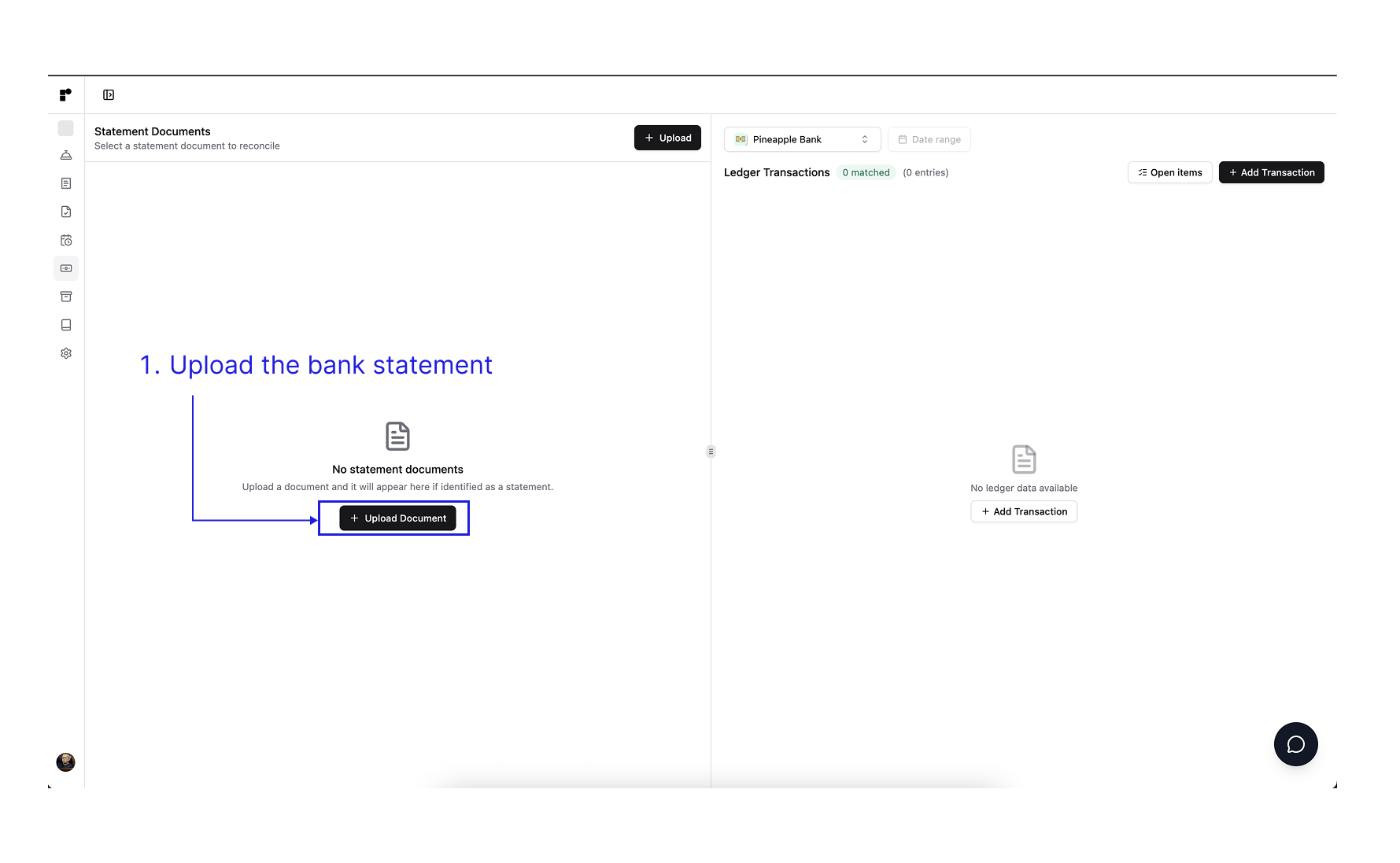
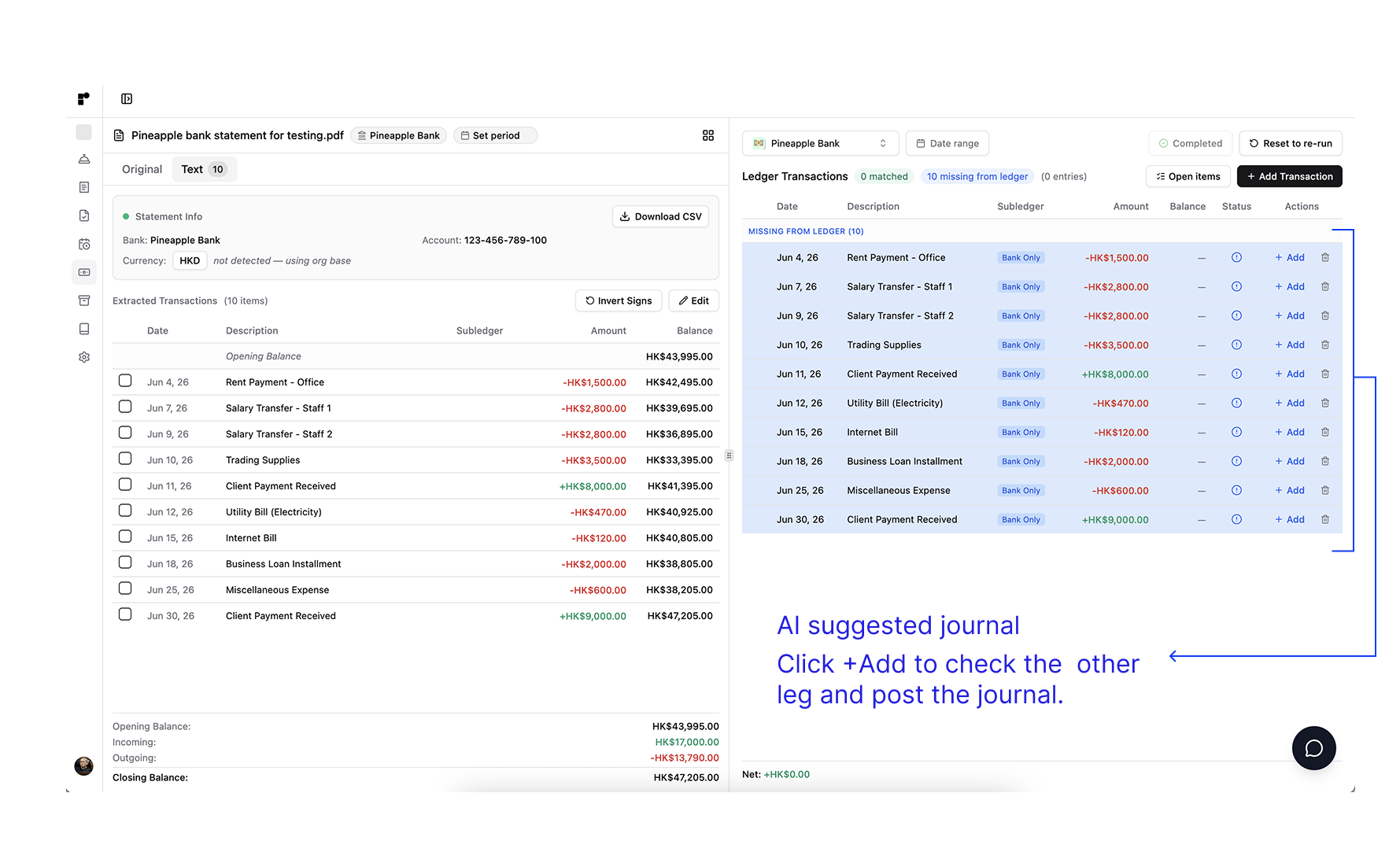
Open Reconciliation from the sidebar (the 💵 statement icon). The screen is split: Statement Documents on the left, your Ledger Transactions on the right. Pick the account you're reconciling from the selector at the top (here, Pineapple Bank). Then follow four steps.
7.1 Upload the statement
Click Upload (or the + Upload Document button in the empty state) and drop in your bank statement. Once Ringbook recognizes the file as a statement, it appears in the Statement Documents list, ready to open.
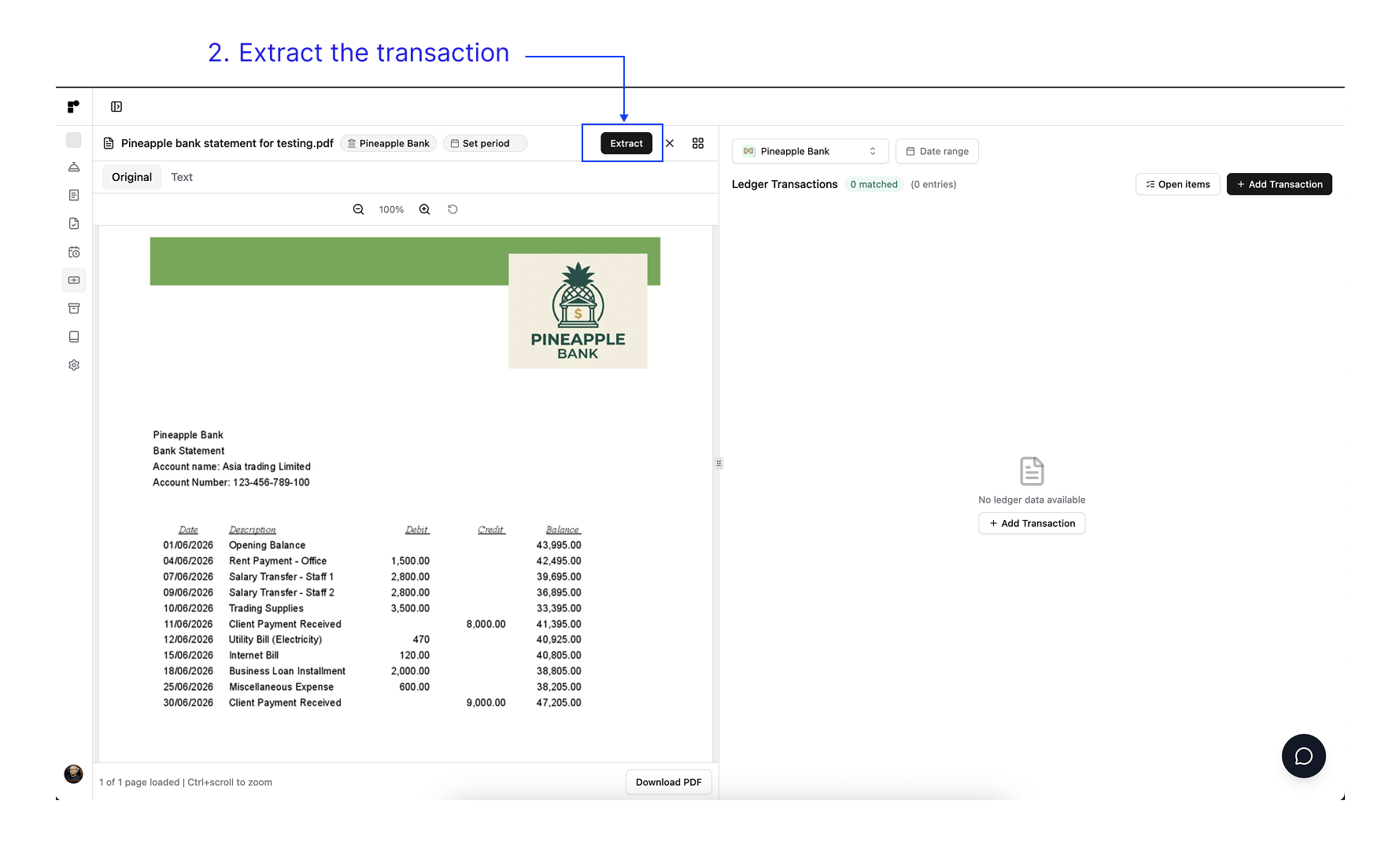
7.2 Extract the transactions
Open the uploaded statement to preview it — the Original tab shows the document as-is, and you can confirm it's the right bank, account, and period. When you're ready, click Extract. The AI reads the statement and pulls every line into a structured list, regardless of how the bank laid it out.
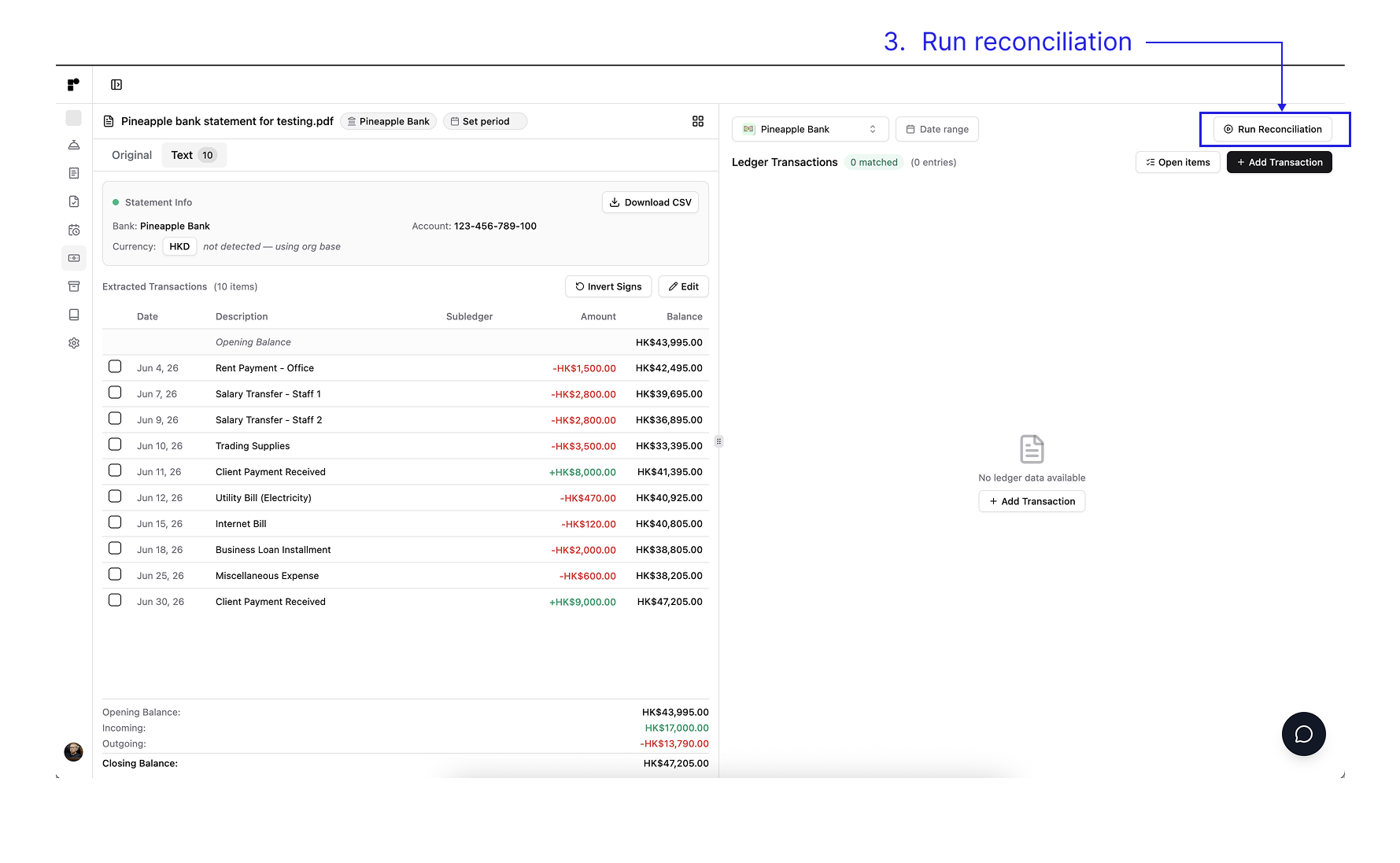
7.3 Review and run reconciliation
The Text tab now shows the extracted result: a Statement Info header (bank, account, and the currency — if the statement doesn't state one, Ringbook falls back to your org base currency) and the full list of Extracted Transactions with date, description, amount, and running balance, plus Opening, Incoming, Outgoing, and Closing totals at the bottom.
Give it a quick check before matching:
- Confirm the Closing Balance equals the figure on the paper statement — if it does, every line came through.
- Use Invert Signs if debits and credits came in with the signs flipped, and Edit to fix any mis-read line.
When it looks right, click Run Reconciliation. Ringbook matches each statement line against your existing ledger entries by date, amount, and description.
7.4 Resolve what's left
The right panel fills in with the outcome. Lines that matched an existing entry are paired up; lines on the statement that aren't in your books yet are grouped under Missing from ledger and tagged Bank Only. For each of those, click + Add: Ringbook drafts the journal with the AI's suggested other leg — the bank side is already known, so it proposes the account to book against. Check that other leg, then post. (You can instead match a line manually against an existing entry that's worded differently, or skip it with a note — e.g. a transfer already booked on the other side.)
Work down the list until nothing is left unexplained: the header flips to Completed and the Net difference reads HK$0.00, meaning your books now agree with the bank. You can Reset to re-run at any time if you need to start the matching over.
The same workflow handles statements with multiple accounts in one PDF, foreign-currency accounts, and personal cards used for company spend. For those odd cases and the bookkeeping detail behind each step, see Bank Reconciliation in the docs.
8. Tell Us What You Think
Always tell us what you think. A wrong journal entry, a match that missed, a confusing screen, or a feature you wish existed — we want to hear all of it. AI features in particular get better the more we learn about where they fall short, so a quick note when something's off is one of the most useful things you can send us.
Open the Report issue / feedback option (the 💬 message icon) from the user menu in the top-right — and from the More menu in the bottom bar on mobile. It opens a short form titled "Report an issue or send feedback" where you pick a category and write a message:
- Bug / error — something is broken or showing the wrong result.
- Journal entry quality — an AI-generated entry is wrong, miscategorized, or low quality. (This is the one that directly trains where the AI needs work — please use it freely.)
- Question — how do I do X, or help with a task.
- Feature request — suggest something new or an improvement.
The form quietly includes the page you were on and a bit of technical context so we can reproduce the issue and follow up — you don't have to describe your setup. Tell us what you were doing, what you expected, and what happened instead; a sentence is plenty.
You can also always reach us at samyip@ringbook.io.